
Cmash Assets
Cmash Asset — Feature Overview
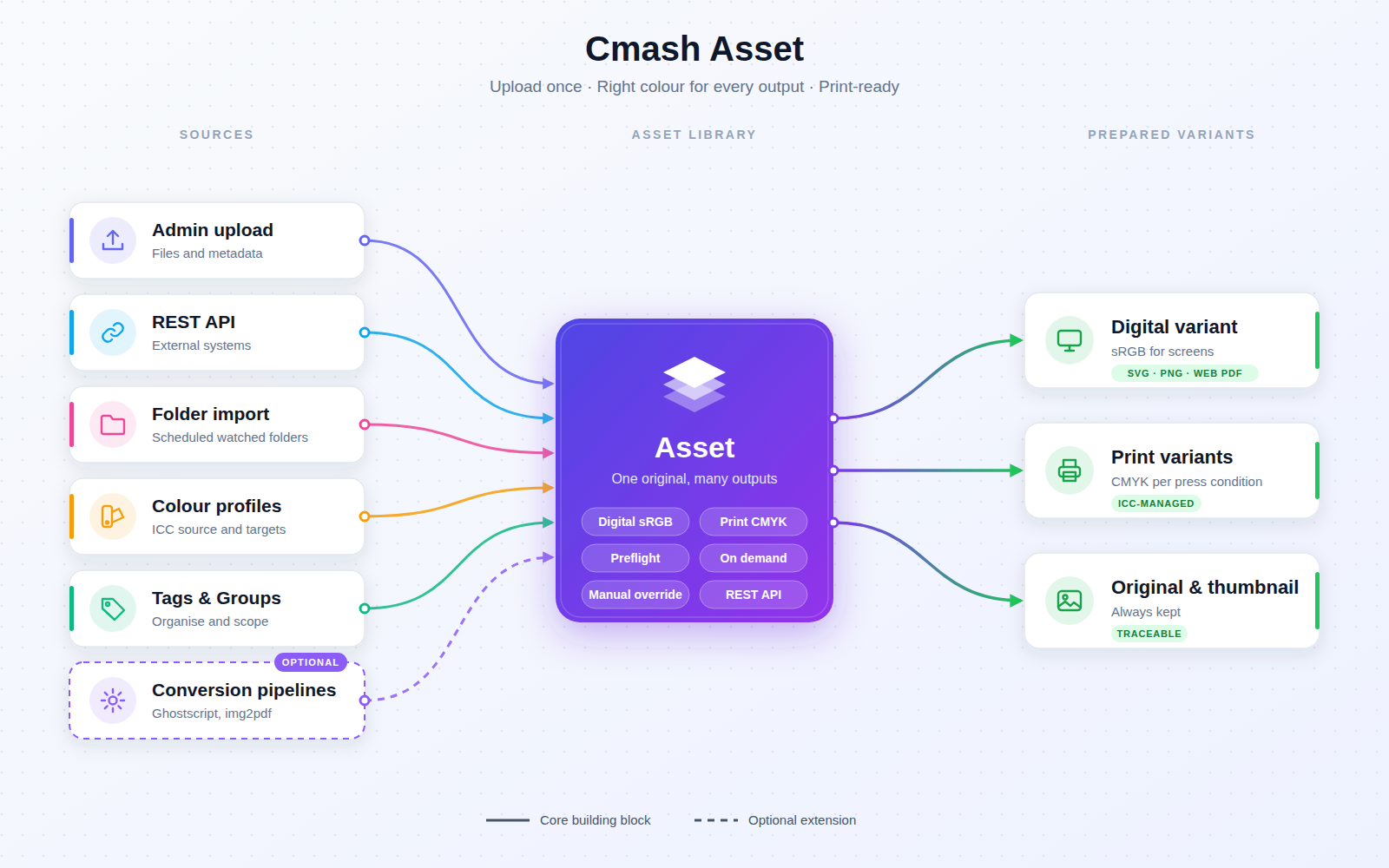
Upload once and get the right file for every output. A central, colour-managed library for logos, images and artwork that prepares screen-ready and print-ready versions automatically.
What Is Cmash Asset?
CMAsh Asset is the shared media library of the CMAsh platform. It keeps every brand-approved logo, product photo, icon, background and piece of vector artwork in one place, and every template and document can use these files through a stable, readable slug.
From a single original it builds output variants for each purpose: an sRGB file for screens and a CMYK file for each press condition you print to. Every variant is converted with ICC colour profiles, checked for print quality and tracked; if the original or its colour settings change, the affected variants are rebuilt.
- One source of truth for shared visual assets
- Digital and print versions generated automatically from a single upload
- ICC-based colour conversion for RGB, CMYK and grayscale sources
- Print-quality checks (preflight) on every upload
- Automated imports from watched folders, run on a schedule
- A full admin UI, a REST API, and safeguards throughout
Who It Is For
| Role | What they get |
|---|---|
| Brand & marketing teams | One curated library of approved imagery, organised with tags and groups, always up to date. |
| Print & production managers | Press-ready CMYK variants per colour profile, preflight checks, and full control over how colour is converted. |
| Template designers | Stable slug references that keep working when the underlying file is replaced or improved. |
| Administrators & IT | Scheduled folder imports, a job queue monitor, configurable conversion pipelines, and role-based permissions. |
| Integrators | A token-secured REST API for creating, updating, and querying assets from external systems. |
Key Features
Central Asset Library
- Upload once, use everywhere. Files are stored centrally and referenced by slug. There are no duplicate uploads and no broken links.
- Automatic naming. When you upload a file, its name and a unique slug are filled in from the filename. The filename as delivered is kept for traceability.
- Rich metadata. Each asset records its name, description, alt text for accessibility, MIME type, file size, pixel dimensions, resolution (DPI), colour space, and page count for PDFs.
- Thumbnail previews. Thumbnails are generated automatically, including for formats a browser cannot show, such as TIFF, HEIC, and PDF. You can recognise every asset at a glance.
- Active/inactive control. Retire an asset without deleting it.
- Replace without breaking. Swap in a new original and every template that uses the asset keeps working. All derived variants are rebuilt from the new file.
Organisation: Tags, Groups, and Ownership
- Colour-coded tags. Group assets by campaign, product line, or type, for example "Logos", "Product Images", or "Holiday Campaign".
- Tag filtering. Filter the library by tag in the admin panel and through the API.
- Groups. Assign assets to groups so that each team or tenant sees only its own content.
- Creator and origin tracking. Every asset records who created it and whether it came from the admin UI ("Internal") or the API ("External"), which gives you a clear audit trail.
Variants: The Right File for Each Output
At the core of CMAsh Asset is the variant system. A variant is a version of an asset prepared for one output purpose.
- Digital variants are converted to sRGB for consistent colour on screens.
- Print variants are converted to the CMYK profile of a specific press condition.
- Configurable variant types. Administrators define as many variant types as they need, for example "Digital", "Print (Coated)", or "Print (Uncoated)". For each type you set:
- Purpose (Digital / RGB or Print / CMYK)
- Target colour profile
- ICC storage mode:
- Compact keeps the file small and refers to the profile.
- Embed ICC makes the file self-contained with the profile embedded.
- Whether it is generated automatically on upload and re-processing
- Whether it is generated on demand during a render when it is missing
- Active or inactive
- Sensible defaults on install. A Digital type and one print type per configured print profile are created for you.
- Status at a glance. Each variant shows whether it is pending, ready, stale, or failed, with a clear error message when something goes wrong.
- Generate for all assets. Build or rebuild one variant type across the whole library in a single action. You can choose to overwrite existing variants, and you get a report of what was processed, what needs attention, and any issues.
Manual Variants: Expert Overrides
Sometimes a designer's hand-tuned file beats any automatic conversion. CMAsh Asset supports that:
- Upload a replacement for any variant slot. Digital slots accept JPEG or PNG. Print slots accept JPEG or PDF.
- Protected from overwrites. Automatic re-processing does not replace a manually uploaded variant.
- Validated and traceable. Manual uploads are checked and fingerprinted, and each one records who uploaded it, when, and under what filename.
- Download options. Download any variant as it is, or download it with the ICC profile embedded. For JPEGs, the image data is not re-encoded.
Professional Colour Management
- ICC-based conversion. Colour conversion runs through a professional colour-management engine (LittleCMS via Imagick) with ICC profiles from the CMAsh Colour Profile library.
- Supported source colour spaces: RGB, CMYK, and Grayscale.
- Source profile detection. Embedded ICC profiles are detected automatically on upload.
- Fallback profile for untagged images. For files without an embedded profile, choose which source profile to assume and add a note explaining the choice.
- Automatic invalidation. If an asset's source profile changes, its digital and print variants are marked stale and rebuilt. Nothing goes out of date without you noticing.
- Byte-for-byte reuse. A PDF that is proven to contain only CMYK and already matches the target profile can be reused exactly as it is, which avoids unnecessary conversion.
- Honest output claims. Output is ICC-managed and checked, but CMAsh Asset does not claim PDF/X certification.
Configurable Conversion Pipelines
A registry of conversion pipelines controls how each type of file becomes each type of output. Administrators can review, adjust, and extend it.
| Source | Digital output | Print output |
|---|---|---|
| JPEG | Colour-managed JPEG | Colour-managed CMYK JPEG |
| PNG, TIFF, PSD, WebP, HEIC | Colour-managed PNG | Colour-managed CMYK JPEG |
| SVG | Served as the original vector file | Rendered to PDF (Typst), then colour-converted (Ghostscript) |
| Rasterised to a single-page PNG | Converted object by object to CMYK (Ghostscript) | |
| Other raster formats (GIF, BMP, ...) | PNG | CMYK JPEG |
Pipeline features:
- Per-pipeline control. Set the source MIME type, purpose, target format (PDF, JPG, PNG, or SVG), converter steps, priority, and active state.
- Availability check. Each pipeline shows whether the current server has the tools it needs.
- Default or customised. Badges show which pipelines ship with the package and which you have edited. Your edits are never silently overwritten.
- Restore shipped defaults with one click.
- Stable variants. Updates to the default pipelines do not needlessly invalidate variants that already exist.
- Optional tools. Ghostscript and img2pdf are optional and must be turned on explicitly. img2pdf wraps raster images in PDF without re-encoding them.
Preflight Quality Checks
Every upload is checked automatically before it reaches production:
- Minimum resolution. 300 DPI by default.
- Minimum dimensions. 100 × 100 px by default.
- Allowed colour spaces. RGB, CMYK, and Grayscale by default.
- PDF page count.
Results appear directly on the asset, so problems are caught at upload rather than at the print shop. Preflight can be turned off, and every threshold can be changed.
Smart Delivery at Render Time
When a template asks for an asset, CMAsh Asset picks the best file available:
- Default Digital and Print types, plus a separate optional Editor preview type for lighter live previews.
- Fallback chain. Define an ordered list of what to try, for example: default Digital variant, then a specific variant type, then the original file. The first usable file wins.
- Missing-variant policy.
- Strict stops the render when the required variant is unusable. This is the default for the shared library.
- Lax falls back gracefully. This is the default for customer uploads.
- On-demand generation. Missing variants can be generated during a render:
- Runs synchronously or through the queue
- Has a time budget, so a render never hangs
- Uses locks, so the same variant is never built twice at once
- Can optionally retry variants that failed before
Re-processing with a Preview
- Preview before you re-process. See exactly what re-processing would do to the thumbnail and each variant before anything changes.
- Targeted re-processing. Re-process one asset, one variant type, or the whole library.
- Background processing. Heavy conversions run on the Laravel queue with automatic retries.
- Processing events. Other parts of CMAsh can react when an asset has finished processing.
Automated Folder Imports
Bring assets in at scale without clicking through uploads:
- Import jobs. Point a job at a server folder and CMAsh Asset imports new files, updates changed ones, and skips duplicates.
- Automatic tagging and assignment. Imported assets are assigned to a user, a group, tags, a source colour profile, and a chosen set of variant types.
- Scheduled runs. Each job can run automatically on its own cron schedule. The scheduler checks every minute.
- File-stability check. Files are imported only after they have stopped changing (30 seconds by default). Partially copied files are never imported.
- Error handling. Files that fail are moved to an
error/subfolder so they can be dealt with. - Detailed import logs. Every run records its status (running, completed, completed with errors, or failed), counts of imported, skipped, and failed files, per-file log entries, a summary, and its duration.
- No overlapping runs. A job that is already running is not started again.
Admin Experience (Filament)
A complete, polished admin interface:
- Asset library.
- Table and grid views with thumbnails, variant status badges, file details, tags, groups, and creator
- Filters and bulk actions
- Asset editor.
- Upload with automatic detection of name, slug, and colour profile
- Live processing and preflight status
- Per-variant cards with download, upload, delete, and generate actions
- Variant type manager. Create and maintain output types, and bulk-generate them across the library.
- Conversion pipeline manager. Tune how files are converted and check that the server can run each pipeline.
- Import job manager. Configure watched folders, schedules, and defaults, and review import logs.
- Job queue monitor. For super admins: see pending, failed, and batched jobs. Retry, forget, or flush failed jobs from the UI.
- Reusable asset picker. Other CMAsh modules use a ready-made asset selection table.
Security and Data Safety
- Role-based permissions. Fine-grained permissions (Filament Shield) cover viewing, creating, editing, deleting, and more.
- Restricted bulk actions. Library-wide generation requires elevated settings permissions. The job queue monitor is for super admins only.
- Deletion guards.
- A colour profile cannot be deleted while assets, variants, or variant types use it.
- A variant type cannot be deleted while the fallback chain, defaults, or existing variants refer to it.
- Backup before reset. The maintenance command that resets variants backs up records and files first. Originals, thumbnails, and source ICC profiles are always kept.
- Automatic clean-up. Deleting an asset also removes its variants, thumbnails, and cached detection files.
Supported Formats
| Category | Formats |
|---|---|
| Raster images | JPEG, PNG, GIF, WebP, TIFF, BMP, HEIC/HEIF |
| Design files | Adobe Photoshop (PSD) |
| Vector | SVG |
| Documents | |
| Output formats | JPEG, PNG, PDF, SVG |
Integrations & API
REST API
A token-secured API (Laravel Sanctum) for integrations:
| Method | Endpoint | Description |
|---|---|---|
GET |
/api/assets |
List assets. Filter by active state, name search, MIME type, and tags. Paginated. |
POST |
/api/assets |
Upload a new asset. It is processed immediately. |
GET |
/api/assets/{asset} |
Retrieve an asset, including all its variants. |
PUT |
/api/assets/{asset} |
Update metadata or the source colour profile. Changing the profile triggers re-processing. |
DELETE |
/api/assets/{asset} |
Delete an asset. |
API responses include the full variant list for each asset: type, purpose, colour profile, status, dimensions, storage mode, whether an ICC profile is embedded, and a download URL.
Platform Integrations
- CMAsh Colour Profiles. ICC profile management for source and target colour conversion.
- CMAsh Tags. Colour-coded tagging and filtering.
- CMAsh Groups. Team and tenant scoping of assets.
- Templates and Typst rendering. Assets are referenced by slug, and the right variant is chosen automatically at render time.
- Customer uploads (User Assets). Customer-uploaded files use the same variant, conversion, and on-demand system, with their own policies.
Permissions & Dependencies
- Requires:
enobis/cmash(core),enobis/cmash-colorprofile(ICC profiles),enobis/cmash-tag(tags), Filament 5, Laravel Sanctum, PHP 8.3+ withext-dom,ext-fileinfo,ext-libxml. - Recommended: the PHP Imagick extension with LittleCMS for ICC-managed digital and print variants. Without it, generic asset storage still works.
- Optional server tools: Ghostscript (PDF and SVG-to-print colour conversion) and img2pdf; both must be switched on by the operator.
- Permissions (Filament Shield style): the import-job policy uses
ViewAny/View/Create/Update/Delete/DeleteAny/Restore/RestoreAny/ForceDelete/ForceDeleteAny/Replicate/Reorder:AssetImportJob. Asset Settings and Asset Variant Types requireView:ManageGeneralSettings. The Job Queue page is for thesuper_adminrole only. - Scheduler: a
cmash:run-asset-importscommand is registered to run every minute (requires Laravel's scheduler to be running). A maintenance commandcmash:reset-asset-variants --forcebacks up and removes shared-asset variants.
Configuration
File config (config/cmash-asset.php) and environment variables
| Key | Env variable | Default | Meaning |
|---|---|---|---|
ghostscript_enabled |
CMASH_ASSET_GHOSTSCRIPT_ENABLED |
false |
Operator opt-in for Ghostscript conversion (PDF, SVG print output). A technical switch only, not a licence grant; review licensing first. |
ghostscript_binary |
GS_BINARY, then CMASH_ASSET_GHOSTSCRIPT_BINARY |
gs |
Path/name of the Ghostscript executable. |
pdf_timeout |
– | 30 |
Seconds allowed for a PDF conversion. |
pdf_raster_dpi |
– | 300 |
Resolution when rasterising a PDF page. |
pdf_max_pixels |
– | 40000000 |
Upper limit of pixels for a rasterised PDF page. |
manual_upload_max_kb |
– | 20480 |
Maximum size (KB) of a manually uploaded variant. |
img2pdf_enabled |
CMASH_ASSET_IMG2PDF_ENABLED |
false |
Operator opt-in for img2pdf (wraps a converted raster into a PDF without re-encoding; no colour management). |
img2pdf_binary |
CMASH_ASSET_IMG2PDF_BINARY |
img2pdf |
Path/name of the img2pdf executable. |
img2pdf_timeout |
– | 30 |
Seconds allowed for img2pdf. |
svg_user_unit_dpi |
CMASH_ASSET_SVG_USER_UNIT_DPI |
96 |
How unitless SVG sizes are read. Use 72 for point-based print artwork. SVGs with real units (mm, pt, in) ignore it. |
Asset Settings (admin: Content → Asset Settings)
Stored in the database and edited in the admin panel.
| Setting | Default | Meaning |
|---|---|---|
auto_generate_preview |
On | Create thumbnails on upload. |
preview_format |
png |
Default thumbnail format. |
preview_max_width |
800 |
Maximum thumbnail width (px). |
preview_quality |
85 |
Thumbnail quality. |
preview_rules |
TIFF, BMP, HEIC, PSD, PDF → PNG; WebP, SVG, PNG, JPEG, GIF → shown directly | Thumbnail format per file type. |
default_digital_variant_type_id |
first active auto-generated Digital type | Default type for SVG/PNG and screen PDFs. |
default_print_variant_type_id |
first active auto-generated Print type | Default type for print PDFs. |
editor_preview_variant_type_id |
none (= default Digital) | Type used for live editor previews only. |
missing_variant_policy |
strict |
Shared library: strict = error, lax = warning and fall back. |
user_asset_missing_variant_policy |
lax |
Same, for customer uploads. |
user_asset_variant_type_ids |
empty (= all auto-generate types) | Variant types built for customer uploads. |
variant_fallback_chain |
Default Digital → Original | Ordered fallback steps (specific type, default Digital, default Print, original). |
generate_variants_on_demand |
On | Master on/off for on-demand generation (set to off when the mode is "No"). |
on_demand_mode |
sync |
sync = generate now, queue = queue and fall back once, off. |
on_demand_budget_ms |
15000 |
Conversion time budget per render (0–600000). |
on_demand_preview_budget_ms |
5000 |
Budget per editor preview. |
on_demand_lock_wait_seconds |
3 |
How long to wait for a busy asset (0–60). |
retry_failed_on_demand |
Off | Retry previously failed variants on each render. |
enable_preflight |
On | Run preflight checks. |
min_dpi |
300 |
Minimum resolution. |
min_width / min_height |
100 / 100 |
Minimum size (px). |
allowed_colorspaces |
RGB, CMYK, Grayscale | Accepted colour spaces. |
Import job options (per job)
| Option | Default | Meaning |
|---|---|---|
| Import folder path | – | Absolute server path to watch. |
| Import user, group, tags | – | Owner, group and tags applied to imported assets. |
| Source colour profile | – | Assumed profile for untagged files. |
| Variant types | empty (= all auto-generate) | Types generated on import. |
auto_import / auto_import_cron |
Off / every 5 minutes | Automatic runs and their cron schedule. |
file_stable_seconds |
30 | Files must be unchanged this long before import. |
Use Cases
- Brand governance — keep logos, icons and brand imagery in one approved library.
- Multi-channel publishing — use the same asset on screen and in print, each time in the correct colour space.
- Print production — deliver CMYK-converted, preflight-checked files for each press condition you print to.
- Campaign management — organise seasonal material with tags and groups.
- Automated content intake — let agencies or DAM systems drop files into a watched folder; CMAsh Asset imports, tags and processes them.
- System integration — sync assets from external platforms through the REST API.
Cmash Asset: one upload, the right file for every output.